Sunday, November 25, 2018

How do I decide Unit; Criterion C: Creating Solution

Follow the checklist below as you work on the creation of your solution

  • The Plan:
    • I have constructed a logical plan (a step-by-step procedure) for the creation of the solution.  (sufficient for peers to be able to follow)
    • I have stated the resources that will be needed.
    • I have completed a timeline / Gantt chart
  • The Creation Process:
    • I have demonstrated excellent technical skills when making the solution.
    • I have fully justified changes made to the chosen design and plan when making the solution.
  • Process Journal: 
                        I have maintained a process journal through the entire creation process.
    • I have explained the tools and techniques used in the process of creation.
    • I have included evidence in the creation phase that I have followed my time plan.
    • I have reflected any changes I made to my plan during the creation phase.
    • I have included screen shots and other photographic evidences of the key phases of creation.
    • I have kept notes in my process journal about how well I worked, problems encountered, and use of time - to be used in the evaluation.
  • The Final Project: I have presented the solution as a whole, either in electronic form, or through photographs of the solution from different angles, showing details.
  • Evaluate: I have evaluated and reflected on my performance in the this stage.
    • Challenges and successes
    • Areas of concerns
    • The strengths and weaknesses.
    • Observations on how this stage could have been improved.
    • General reflections 
Requirements for each strand 


By the end of year 4 you should be able to:


  • construct a series of logical steps to create the solution, using charts, diagrams and text that include aspects of quality control and quality assurance
  • construct a plan to create the solution that makes effective use of resources and time
  • construct a clear and concise plan that peers will be able to follow to create the solution

(ii) Demonstrate excellent technical skill when making the solution


At the end of year 4 you should be able to:

  • develop manipulative skills to effectively use a wide range of tools, techniques and equipment
  • use a wide range of tools and equipment proficiently to create high-quality solutions
  • ensure a safe working environment for themselves and others
By the end of year 4 you should be able to:
  • independently follow the plan to produce the solution, which functions as intended
  • manage time effectively to produce the solution to the deadline stated in the plan

 ( strand 2 and 3. At-least 6 Pages)

(iv) Fully justify changes made to the chosen design and plan when making the solution

By the end of year 4 you should be able to: Pages 2 or 3 pages

  • justify, through the use of drawings/diagrams, any changes made to the design while making the solution and how they affected the plan

Monday, November 12, 2018

Criterion B: Developing Ideas

Criterion B: Developing Ideas

At the end of year 5, students should be able to:

i. develop design specifications, which clearly states the success criteria for the design of a solution


ii. develop a range of feasible design ideas, which can be correctly interpreted by others

iii. present the chosen design and justify its selection


iv. develop accurate and detailed planning drawings/diagrams and outline the requirements for the creation of the chosen solution.


Strand i)

i)   develop design specifications, which clearly states the success criteria for the design of a solution
-      The design specs should be measurable with a clear way on how the specs will be tested.
-      The specification should be directly connected to your design brief. 

Example: Game Product
Specification
Test
Game will be less than 1 MB in size
Install it in a computer  the size in properties
Played by two players (Multiplayer game)
Allow two players to play simultaneously
The game 3 levels that will advance in complexity.
Play the game at each level time the duration it takes to complete a level and record the complexities.


Maximum of 2 pages

Strand ii) 
ii) develop a range of feasible design ideas, which can be correctly interpreted by others

- Develop a range of good quality designs and measure each of them against the design specs.
- Your description for each design should be detailed and clear and use captions on images or diagrams which are not clear.
- Annotate  the designs with sufficient detail to explain how they meet the requirements of the design specification and to explain design thinking

Sketches
https://sketchboard.io/

https://sketch.io/sketchpad/

Examples of Designs

Clothing sketch by ES Kim at Coroflot.com


How Specs are used in Tech Packs - How to Spec a Garment eBook - Learn how to measure apparel for fashion spec sheets & tech packs - fully illustrated guide $34.95. #techpacks #specsheet #fashiondesign #fashionspecs

Maximum of  7 pages


Strand iii)

iii.           present the chosen design and justify its selection
         -      State the chosen design.
         -      Provide detailed justification why the design was chosen.
         -      Suggest possible improvements to the chosen design. 
         -      If possible show the chosen design with the improvements included as a final design.

Maximum of  2 pages 


Strand iv)
iv.           develop accurate and detailed planning drawings/diagrams and outline the requirements for the creation of the chosen solution.
          
          The above can be achieved using either of the following tools
           a) Table of requirements.
b)  Flowchart
c)  Site Map


 This should not be confused with the designs developed and justified. This is the process detailing the requirement for the creation of the chosen solution.  

Site Map
Image result for Site map sketches

Flowchart Sketching software
https://www.digikey.com/schemeit/project/

Site Map Builders
https://www.gloomaps.com/

Maximum of 4 pages

Resouce blog
http://robc84.wixsite.com/bisdesign/copy-of-crit-b-4

Sunday, November 4, 2018

How to Sort Data in Excel Spreadsheets (The Right Way)

How to Sort Data in Excel Spreadsheets (The Right Way)


So, you get handed an Excel spreadsheet with thousands of rows inside of it, and you realize the data is all out of order. You might need to sort it based on the names inside of a column, or by sorting data from large to small.
On the surface, sorting data is a simple task in Excel, and the app certainly makes simple sorting easy. However, there's much more power in how you can sort and reorder the data in your worksheets. Here are three Excel data sorting techniques you'll learn in this tutorial:
  1. Sort data simply with just a couple of clicks.
Sorting can be a very simple, two-click process to reorganize the data in your spreadsheet. Let's learn how.
In an Excel workbook, start off by clicking in a cell of the column you want to sort. Now, make sure that you're on the Home tab of Excel's ribbon, and find the Sort and Filter button on the far right side of it.
Sort  Filter in Excel
The Sort & Filter button lives on the far right side of the Home tab on the ribbon.
Notice that in the sort options, you can sort text "A to Z", or "Z to A." These simple options will alphabetically sort the Excel data either direction, depending on the option you choose.
When you are sorting data in Excel, the entire row is being sorted. Essentially, the column you select will be the "key" that Excel uses that to decide how to sort the data, but each row is a record that should stay grouped together.
Depending on the data you've selected, you can sort alphabetically or numerically. If your column has numerical values, you can sort from smallest to largest amounts, while text data will sort based on alphabetical order.
Sort numerically in Excel
In the example above, the sort options have changed because I've selected a column with numbers.
It really is this easy to perform a basic sort. Simply click inside of a column of data, choose a sort option, and Excel will reorder the data inside a spreadsheet.
So far, a simple sort has allowed us to sort for a single type of data. What if we want to consider two types of data in our sorting?
What if we wanted to...
  • Sort alphabetically by the state, and then by the county in a spreadsheet.
  • Sort alphabetically by the name of a client, and then by each type of project we did for them.
  • Sort our clients in a list alphabetically, and then by amount for each individual project, from largest to smallest.
The answer to all of these is an advanced sort, where you can set multiple levels of sorting data. Let's walk through that last example using the sample data.
To get started, click somewhere inside of your data and find the Sort & Filter option, and then choose Custom Sort.
Custom Sort in Excel
Access advanced sorting options by choosing Sort & Filter > Custom Sort.
On this window, we can add multiple levels of sorting. Start off by clicking on the dropdown option next to Sort by and choose a column that you want to sort by.
Custom sort window in Excel
In my case, I'll choose Client from the dropdown menu, and leave the the Sort On set to Values, and Order set to A to Z. In plain English, this will sort the Excel spreadsheet based on alphabetical order.
Now, let's click on Add Level. This will create a new row in the sort options and allows us to add a second level of organization.
I can now choose Amount billed from the second dropdown. The combination of these two rules will start by sorting based on the client name, and then by the amount billed on each project.
Two levels of Excel spreadsheet sorting
You could continue to add as many levels as you want to this advanced sorting window. The sequence of the rows matters; you can move a row up to sort first by the amount billed, for example, and then by client.
Once we press OK, Excel will sort the spreadsheet based upon the rules we've built in this window.

Using functions and nested functions in Excel formulas

Functions are predefined formulas that perform calculations by using specific values, called arguments, in a particular order, or structure. Functions can be used to perform simple or complex calculations. You can find all of Excel's functions on the Formulas tab on the Ribbon:
The Excel Formulas tab on the Ribbon

IF FUNCTION IN EXCEL.

The IF function is one of the most popular and useful functions in Excel. You use an IF statement to ask Excel to test a condition and to return one value if the condition is met, and another value if the condition is not met.

The IF function is one of Excel's logical functions that evaluates a certain condition and returns the value you specify if the condition is TRUE, and another value if the condition is FALSE.

The syntax for Excel IF is as follows:
IF(logical_test, [value_if_true], [value_if_false])
As you see, the IF function has 3 arguments, but only the first one is obligatory, the other two are optional.
  • logical_test - a value or logical expression that can be either TRUE or FALSE. Required.In this argument, you can specify a text value, date, number, or any comparison operator.
    For example, your logical test can be expressed as or B1="sold", B1<12/1/2014, B1=10 or B1>10.
  • value_if_true - the value to return when the logical test evaluates to TRUE, i.e. if the condition is met. Optional.
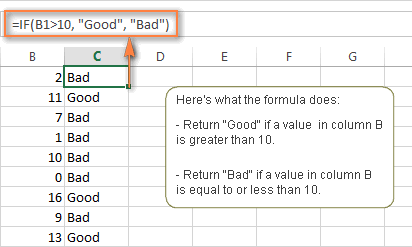
    For example, the following formula will return the text "Good" if a value in cell B1 is greater than 10: =IF(B1>10, "Good")
  • value_if_false - the value to be returned if the logical test evaluates to FALSE, i.e. if the condition is not met. 
Excel IF function - formula example


Using the IF function in Excel - formula examples

Now that you are familiar with the Excel IF function's syntax, let's look at some formula examples and learn how to use IF as a worksheet function in Excel.

Excel IF statement for numbers: greater than, less than, equal to

The use of the IF function with numeric values is based on using different comparison operators to express your conditions. You will find the full list of logical operators illustrated with formula examples in the table below.
ConditionOperatorFormula ExampleDescription
Greater than>=IF(A2>5, "OK",)If the number in cell A2 is greater than 5, the formula returns "OK"; otherwise 0 is returned.
Less than<=IF(A2<5, "OK", "")If the number in cell A2 is less than 5, the formula returns "OK"; an empty string otherwise.
Equal to==IF(A2=5, "OK", "Wrong number")If the number in cell A2 is equal to 5, the formula returns "OK"; otherwise the function displays "Wrong number".
Not equal to<>=IF(A2<>5, "Wrong number", "OK")If the number in cell A2 is not equal to 5, the formula returns "Wrong number "; otherwise - "OK".
Greater than or equal to>==IF(A2>=5, "OK", "Poor")If the number in cell A2 is greater than or equal to 5, the formula returns "OK"; otherwise - "Poor".
Less than or equal to<==IF(A2<=5, "OK", "")If the number in cell A2 is less than or equal to 5, the formula returns "OK"; an empty string otherwise.

Excel IF function examples for text values

Generally, you write an Excel if statement with text using either "equal to" or "not equal to" operator, as demonstrated in a couple of IF examples that follow.

Example 1. Case-insensitive IF formula for text values

Like the overwhelming majority of Excel functions, IF is case-insensitive by default. What it means for you is that logical tests for text values do not recognize case in usual IF formulas.
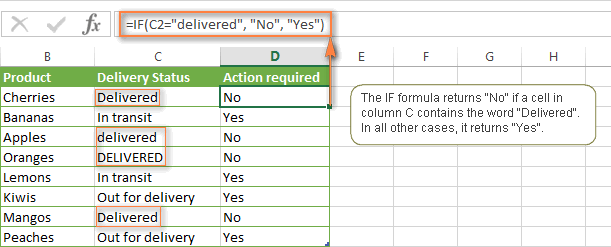
For example, the following IF formula returns either "Yes" or "No" based on the "Delivery Status" (column C):
=IF(C2="delivered", "No", "Yes")
Translated into the plain English, the formula tells Excel to return "No" if a cell in column C contains the word "Delivered", otherwise return "Yes". At that, it does not really matter how you type the word "Delivered" in the logical_test argument - "delivered", "Delivered", or "DELIVERED". Nor does it matter whether the word "Delivered" is in lowercase or uppercase in the source table, as illustrated in the screenshot below.
Case-insensitive IF formula for text values


Thursday, November 1, 2018

CELL RANGE, CELL REFERENCING (RELATIVE AND ABSOLUTE CELL REFERENCING)

CELL RANGE, CELL REFERENCING (RELATIVE AND ABSOLUTE CELL REFERENCING)

Cell Range

While references often refer to individual cells – such as A1, they can also refer to a group or RANGE of cells.
Ranges are identified by the cell references of the cells in the upper left and lower right corners of the range.
The two cell references used for a range are separated by a colon ( : ) which tells Excel or Google Sheets to include all the cells between these start and end points
e.g =sum( D3:D10)

Relative, Absolute, and Mixed Cell References

The three types of references that can be used in Excel and Google Sheets are easily identified by the presence or absence of dollar signs ($) within the cell reference:
  • Relative cell references Used to copy formulas into other cells and contain no dollar signs, as shown in the formula in row 2, = A2+A4.
  • This means the formulas will follow similar operation while being used. Such operations can cause errors in the calculations.
  • Absolute cell references  used to copy formulas into other cells without causing errors and changes. They use dollar signs to each letter or number in a reference, as shown in the formula in row 4, =$A$2+$A$4.
  • Mixed cell references have dollar signs attached to either the letter or the number in a reference but not both, as shown in the formula in row 5, =$A2+A$4.
  • SEE THIS LINK

Copying Formulas and Different Cell References

Another advantage of using cell references in formulas is that they make it easier to copy formulas from one location to another in a worksheet or workbook.

Monday, October 29, 2018

Exchange Unit: Criterion A: Inquiring and Analysis

How Do I Decide ? Smart Cells; Summative Assessment

The Aga Khan Academies
Summative Assessment Guidelines on Unit - How Do I do?

Topic - Sustainable solutions to everyday life
Time: 2 lessons
_________________________________________________________________________
The following systems are some solutions to different problems.
1. Library Management System
2. Students Database Management System
3. Aka Mombasa, Tuck shop
4. Manage budgetary for year level party
5. Plan a birthday /  wedding budget.
6. Budget for Commons ( breakfast, lunch super)
________________________________________________________________________
UNIT – How do I decide?

Criterion A: Inquiring and analysing

Maximum: 8
Topic – Sustainable solutions to everyday life
Sustainability is about enabling all people whether in school, office and home to satisfy their basic needs and enjoy a better quality of life without compromising the quality of life.  Sustainability here in Design is to create something new or simply by re-designing what that already exists. It is the new way of thinking that need to be found and new systems based on these new ideas, have to be generated.

Challenge
Identify a problem faced by a client which requires the application, use of calculated values and presentation of the information in different formats for decision making. 

Your task therefore is to identify a problem that can be addressed or solved using 
an IT software that calculates values, and presents the information in a suitable formats for decision making. The problem should be clearly described and the client's current way of addressing the  situation described. The problem description should include the current  limitations the client is facing in relations to sustainability and detailed explanation of why you think an IT solution will be the best for this situation. 

Breaking the requirements for each strand;

i). Explain and justify the need for a solution to a problem for a specified client/target  audience: (Maximum of 2 pages)

  • Have introduction to the unit by highlighting; Global Context, Key Concept, AK strand/s and Learner profile. Ensure that the introduction is link to the unit. 
  • Explain the background of the problem facing the client/target audience, discuss this problem and how long it has persisted, show how it has affected the client and community, show how the client is in dire need for solution. Give examples of social challenges arising from this problem, show how an IT solution will be better placed to solve this problem and share the benefits to the client if the problem is solved.

Please note the TWO things to consider;

 a) Detailed background information of the current problem.
 b) Clear and to the point problem justification. Why you think IT solution is best suited for the problem.

           Make sure you identify and justify:
                a) What is the problem?
                b) Whose problem is it? ( identify the client/target audience)
                c) Where is the problem occurring? ( identify the situation)
                d) What is the cause of the problem? 
                e) What effect is the problem?
   
          Grading 7-8: Section that relates to strand
           i.
         - A detailed explanation and justification of the problem.

           ii.   identify and prioritize primary and secondary research needed to develop a solution to the problem: (Maximum of 2 Pages)

( clearly identify which sources are primary and secondary and demonstrate understanding of each)
- construct a detailed research plan which identifies and prioritizes the primary and secondary research needed to develop the solution to the problem. Show the what you need to research, how you will gather the info,(primary/secondary), when the task will be completed.
- follow the research plan to collect your detailed information from primary/secondary sources.
- Let your research question cover the business problem and the IT tools in detail.


- Independently generate 12+ detailed SMART and appropriate questions, which are clearly prioritized (Top 3 must be in a logical order) and identified as the specific type of primary and secondary research sources, to help develop the solution focused on:
❏- Client
❏ ‐ Time
❏ ‐ Resources
❏ ‐ Function
❏ ‐ Aesthetics

 iii.   Analyse a range of existing products that inspire a solution to the problem: (maximum of 4 Pages)
           (have a clear analysis of exiting products IT tools and finished products which can solve the same problem)


           Discuss different IT tools and products; in each type show examples and how they work plus their images; you intend to use, in each categories show examples and how they  work plus their images, advantages and disadvantages. Their rating/statistical performance of the existing products other companies have used.

           Finally select one out of the list of tools e.g mobile app, excel puzzle and justify why it is the best solution than the rest for the problem, show the different types of your IT solution, e.g different excel mobile software and select one excel mobile software that you will use explaining how it work with supporting images  

- 4+ products are all analyzed in detail (excel mobile apps, excel puzzles and/or Parts, purposes, complexities thinking routines, etc..). Appropriate usage of subject specific vocabulary ‐ the elements of design ‐ Aesthetic and functional elements.

           iv).      Develop a detailed design brief, which summarizes the analysis of relevant research. (maximum of 2 Pages) ( produce a design brief that summarizes their research and then links it to the client/target audience)


- Write a detailed design brief that outlines, the client/target audience opinion, the experts opinion, and your personal opinion. Discuss the IT tools you will use, discuss the key features of the tool, specifications  and its benefits to the client based on your research.

- Your design brief should cover all relevant areas of your research and explaining in detail why you did not use IT tools (these) plus justifications and why you will use other tools and justifications.

- Write a summary of the collected research, with appropriate images, which tie together the findings from the student’s research and how it will affect their project. Include a coherent design brief (in paragraph form) that connects the clients’ needs, and how the student’s product intends to solve the problem and any potential constraints (such as time, materials, etc.). Guidance: 400 + words.

The design brief must highlight the following aspects of the students research

❏ ‐ Time
❏ ‐ Resources
❏ ‐ Environmental considerations
❏ ‐ Safety
❏ ‐ Function/Usability
❏ ‐ Aesthetics/Visual Communication
❏ ‐ Technical Skills


Bibliography should be using APA formatting. ( A maximum of 1 page)

Using APA Formatting, spelling, and grammar should be done.

- Your document should page numbered

- Appropriate diagrams can be used for the explanation in strand


Following Rubric helps to evaluate their work.

At the end of the unit, students should be able to:
i. Explain and justify the need for a solution to a problem
ii. State and prioritize the main points of research needed to develop a solution to the problem
iii. Describe the main features of one existing product that inspires a solution to the problem
iv. Present the main findings of relevant research.

Achievement Level
Level Descriptor
0
The student does not reach a standard described by any of the descriptors below.

1-2
The student:
 i. states the need for a solution to a problem for a specified client/target
audience.

(Student explains the word sustainability in a paragraph and connects why sustainability is needed for his chosen solution. He also justifies that why he is doing his research on a given system and what made him to do.)


 ii. develops a basic design brief, which states the findings of relevant
research.

(Student writes a paragraph on what kind of solution he/she is going to provide to the client, eg., An Excel software solution or a web page creation. Here, the student mentions the impact on environment (if any), and an awareness than the existing solution that are available in the market, off-the-shelf.)
3-4
The student:
i. outlines the need for a solution to a problem for a specified client/target
audience.

ii. outlines a research plan, which identifies primary and secondary
research needed to develop a solution to the problem, with some
guidance.

(Here, student need to create tables mentioning the Primary and Secondary research methods through which he acquired the required information to create his solution.)

iii. analyses one existing product that inspires a solution to the problem

(Here, student critically analyses the existing manual register / software and writes its drawbacks in order to have a sophisticated solution)

iv. develops a design brief, which outlines the analysis of relevant research.

5-6
 i. explains the need for a solution to a problem for a specified client/target
audience.

ii. constructs a research plan, which identifies and prioritizes primary and
secondary research needed to develop a solution to the problem, with
some guidance.

iii. analyses a range of existing products that inspire a solution to the
problem.

iv. develops a design brief, which explains the analysis of relevant research.

7-8
The student:

i. explains and justifies the need for a solution to a problem for a client/
target audience

ii. constructs a detailed research plan, which identifies and prioritizes
the primary and secondary research needed to develop a solution to the
problem independently

iii. analyses a range of existing products that inspire a solution to the
problem in detail

iv. develops a detailed design brief, which summarizes the analysis of
relevant research.


CRITERION A SAMPLE


Resources  
https://www.youtube.com/watch?v=IvW0kcajWKk

Introduction to Spreadsheet (Tutorial)
https://edu.gcfglobal.org/en/excel2016/getting-started-with-excel/1/


Spreadsheet Exercises
http://web.utk.edu/~dhouston/excel/exercise.html

How to make crossword puzzles using Excel
https://www.internet4classrooms.com/excel_puzzle.htm

http://eforexcel.com/wp/excel-quiz-7-crossword/

Sample Products
1. Hotel Excel booking
 https://www.onlinepclearning.com/excel-room-booking-system/

2. Tuckshop Budget Product
http://i-learnertuckshop.weebly.com/budget.html

3. Threatre Booking System
https://www.youtube.com/watch?v=D8q51d8Mbro

4. Creating A quiz
https://www.westernsydney.edu.au/tld/home/how_to/how-to_resources/excel_resources/create_a_quiz_in_excel

5. Creating Mobile apps using Excel
https://support.openasapp.net/hc/en-us/articles/207930855-Create-an-app-from-an-Excel-calculation

https://www.appsheet.com/apps-from-office-365-and-onedrive-for-business